If Absher is not working, the cause is usually one of nine things: a wrong ID or password, a missing OTP, a forgotten password, an outdated mobile number, an inactive account, an app error, a website outage, Nafath not approving your login, or a number linked to another account.
Start with the five quick checks below, then jump to the fix that matches your problem. Most basic checks take only a few minutes.
Key Takeaways: Absher Not Working? 9 Common Problems and Fixes
- check_circleCheck your login details first: Make sure your National ID or Iqama number and Absher password are correct, with no extra spaces or typing errors.
- check_circleNot receiving an Absher OTP? Check your mobile signal, SMS settings and registered phone number. Your OTP may be going to an old number.
- check_circleForgot your Absher password? Use the Forgot Password option on the official Absher website to reset it through the available verification process.
- check_circleChanged or lost your mobile number? Update it through the Absher app, a self-service kiosk or an authorised activation officer.
- check_circleAccount not activated? Complete digital identity activation through the Absher app, a self-service kiosk, a participating bank or an activation officer.
- check_circleAbsher app crashing or freezing? Update the app, restart your phone, clear the cache (Android) or reinstall the app if necessary.
- check_circleAbsher website not opening? Check your internet connection, try another browser or device, and check official Absher announcements for service interruptions.
- check_circleNafath not approving your login? Check your Nafath activation, internet connection and pending approval requests. If you changed phones, complete the official activation process on your new device.
- check_circleMobile number already linked to another account? Verify that you entered your own number and contact Absher support if it is incorrectly associated with an old account.
- check_circleStill unable to log in? Contact Absher through its official support channels for account-specific assistance.
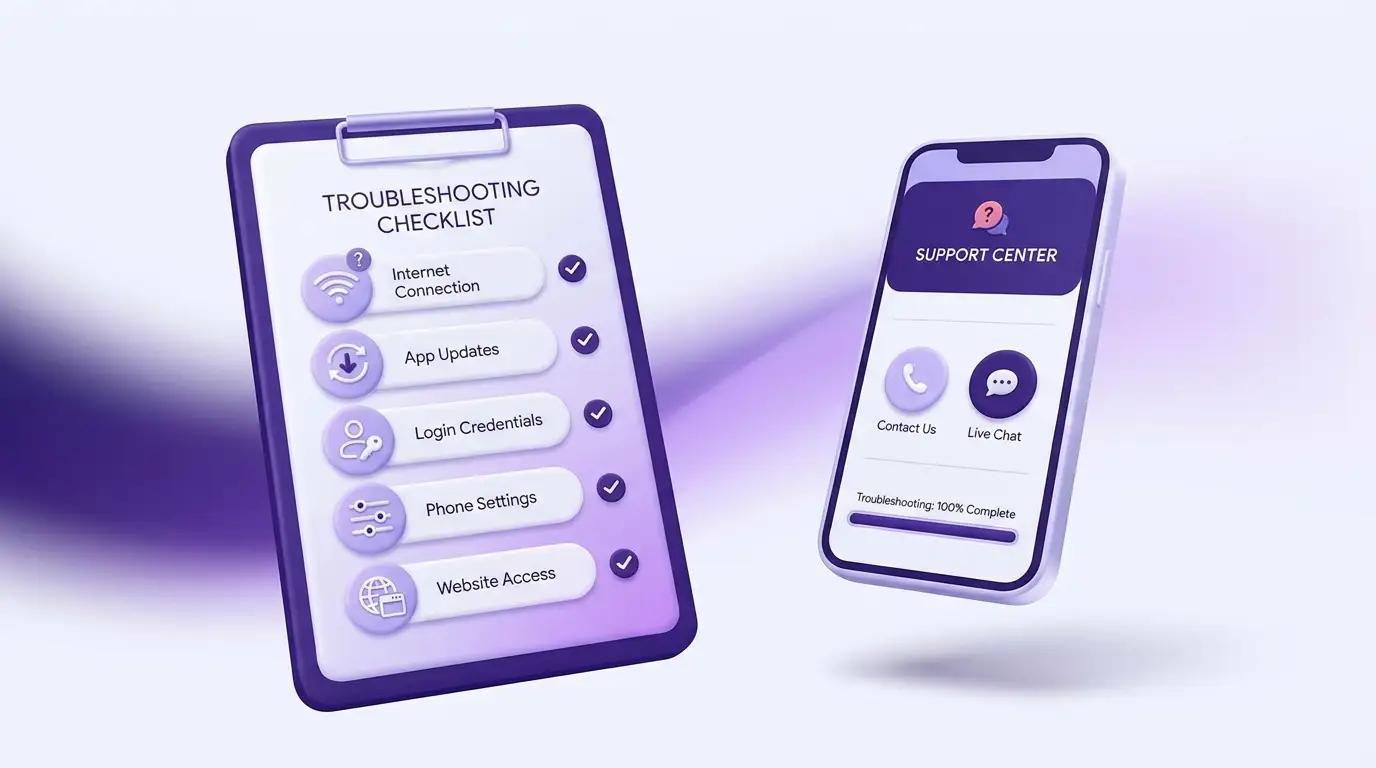
Before You Start: 5 Quick Checks
Before resetting your password or changing your account details, try these steps:
- Check your internet connection: Open another website or app. If it does not load, switch between Wi-Fi and mobile data.
- Update the Absher app: Open Google Play or the Apple App Store and install any available update.
- Check your login details: Enter your National ID or Iqama number carefully. Use an English keyboard and check for extra spaces.
- Check your phone settings: Make sure your date and time are correct. Setting them to automatic is a useful general troubleshooting step.
- Try both access methods: Open the official Absher website. If the website is working but the app is not, it could be a problem with the app or your phone.
Find the right fix
| What is happening? | Possible cause | Go to |
|---|---|---|
| Absher rejects your ID or password | Incorrect login details | Problem 1 |
| You do not receive an OTP | SMS, network or mobile-number issue | Problems 2 and 4 |
| You forgot your password | Password needs to be reset | Problem 3 |
| You no longer use your registered number | Old mobile number | Problem 4 |
| Your account is not active | Activation is incomplete | Problem 5 |
| The app crashes or freezes | App or phone issue | Problem 6 |
| The website does not open | Browser, network or service issue | Problem 7 |
| Nafath does not approve your login | Nafath verification issue | Problem 8 |
| Your number is linked to another account | Number already in use | Problem 9 |
1. Absher Login Problem: Wrong ID or Password
Your Absher ID and password are separate from Nafath approval. The Absher login screen asks for your ID and password, while some services then ask you to approve a request in the Nafath app. If you are not prompted in Nafath, see Problem 8.
If Absher rejects your login details, try these checks:
- check_circleEnter your National ID if you are a Saudi citizen.
- check_circleEnter your Iqama number if you are a resident.
- check_circleCheck every digit before submitting.
- check_circleSwitch your phone or computer keyboard to English.
- check_circleCheck that Caps Lock is off.
- check_circleRemove extra spaces if you copied your password.
- check_circleMake sure you are entering your Absher password, not a password for another service.
If your details are correct and Absher still rejects your login, reset your password using the steps in Problem 3. Don't keep trying passwords you aren't sure of.
2. Absher OTP Not Received
If you do not receive your Absher OTP, please check your mobile signal, SMS settings and the registered phone number on your account. The code may be going to an old number if you have changed your SIM or phone.
Try these steps:
- Make sure your phone has a working mobile signal.
- Check your SMS inbox and blocked-message folder.
- Check whether your phone filters messages from unknown senders.
- Restart your phone and try again.
- Wait for the current request to finish before requesting another code.
- If possible, try the process through the Absher website instead of the app, or the other way around.
Do not keep requesting new codes in quick succession. Follow the waiting time shown on the screen.
What if your old number is no longer active?
In case Absher sends the OTP to the number that you no longer use, you have to update your registered mobile number through the available official channel. See Problem 4 for the choices provided by Absher.
Never share any OTP with anyone. Absher advises users to keep their passwords and verification codes private.
3. Forgot Your Password? How to Reset Your Absher Password
To reset your Absher password, go to the Absher official website, click on the Forgot Password option, enter your National ID/Iqama details, go through the verification process, follow the instructions and set a new password.
Follow these steps:
- Open the official Absher website.
- Go to the individual login page.
- Select Forgot Password or the password-reset option displayed.
- Enter your National ID or Iqama details as requested.
- Complete the verification step shown on the screen.
- Follow the instructions to create a new password.
- Enter the new password again to confirm it.
- Return to the login page and try signing in.
You might also need access to the mobile number associated with your account for online verification. The exact steps will depend on what options Absher gives you for your account.
Choose a strong password
Choose a password that is unique, and not one that you use on other websites. Absher's published password guidance includes requirements such as a minimum of eight characters, a lowercase letter and a number. This information is taken from an old Absher guide, so follow the current requirements shown on the live reset screen.
Use a unique 12+ character password and save it in a password manager for better account security. Do not use your Absher password for any other website.
Read our guide to creating a strong password for more tips on securing your account.
If you cannot perform the online reset, Absher has self-service kiosks and activation officers who can help you reset your password. Check the official Absher service and activation information before visiting.
4. Lost Your Old Number? How to Update Your Absher Mobile Number
You can manage your Absher digital identity through the following three official channels: the Absher app, a self-service kiosk, or an activation officer at Jawazat or Civil Affairs office
The right path depends on whether you still have access to your account and can complete the identity checks required by that channel.
Official mobile-number update options
| Route | When to use it | What to know |
|---|---|---|
| Absher app | You can still sign in and access Digital Identity Management | The app lists a mobile-number change option. You may need to complete the checks shown in the app. |
| Self-service kiosk | You cannot complete the app process or need an in-person service point | Absher lists mobile-number changes among the services available at its kiosks. |
| Activation officer | You need assistance with identity verification | Officers at Jawazat and Civil Affairs offices can help with digital identity services after verifying your identity. |
Option 1: Change your number through the Absher app
Use this route if you can still sign in:
- Open the official Absher app.
- Sign in to your account.
- Open Digital Identity Management.
- Select the mobile-number change option if it is available.
- Follow the instructions and complete the identity checks displayed.
If you cannot sign in because the OTP goes to your old number, use another available route instead.
Option 2: Visit a self-service kiosk
Absher lists mobile-number changes and password resets among its self-service kiosk options.
- Find an official Absher self-service kiosk.
- Follow the on-screen instructions for digital identity services.
- Select the mobile-number change option if it is available.
- Complete the identity checks requested by the kiosk.
Check the official Absher website for service locations and instructions before travelling.
Option 3: Visit an activation officer
Absher also lists activation officers in the General Directorate of Passports (Jawazat) and in the Civil Affairs offices. After verifying your identity, these officers can help you with digital identity services.
If you can’t do it through the app or kiosk, this could be a good option.
Can you change your number without your old sim?
While Absher lists kiosks and activation officers as service channels for mobile numbers, its public guidance does not clearly confirm that every user can complete the change without access to the old number. It also does not set out a single fingerprint or identity-check requirement for all routes.
If you are unable to receive the OTP, contact Absher or request the relevant service location which identity documents and checks you need before visiting. Do not assume that every route has the same requirements.
Official reference: Absher Digital Identity Management and Activation Channels.
5. Absher Account Not Activated: Official Activation Options
Registering gives you Absher login details. Activation of your digital identity is a separate step which verifies your identity so that you can use the relevant digital services.
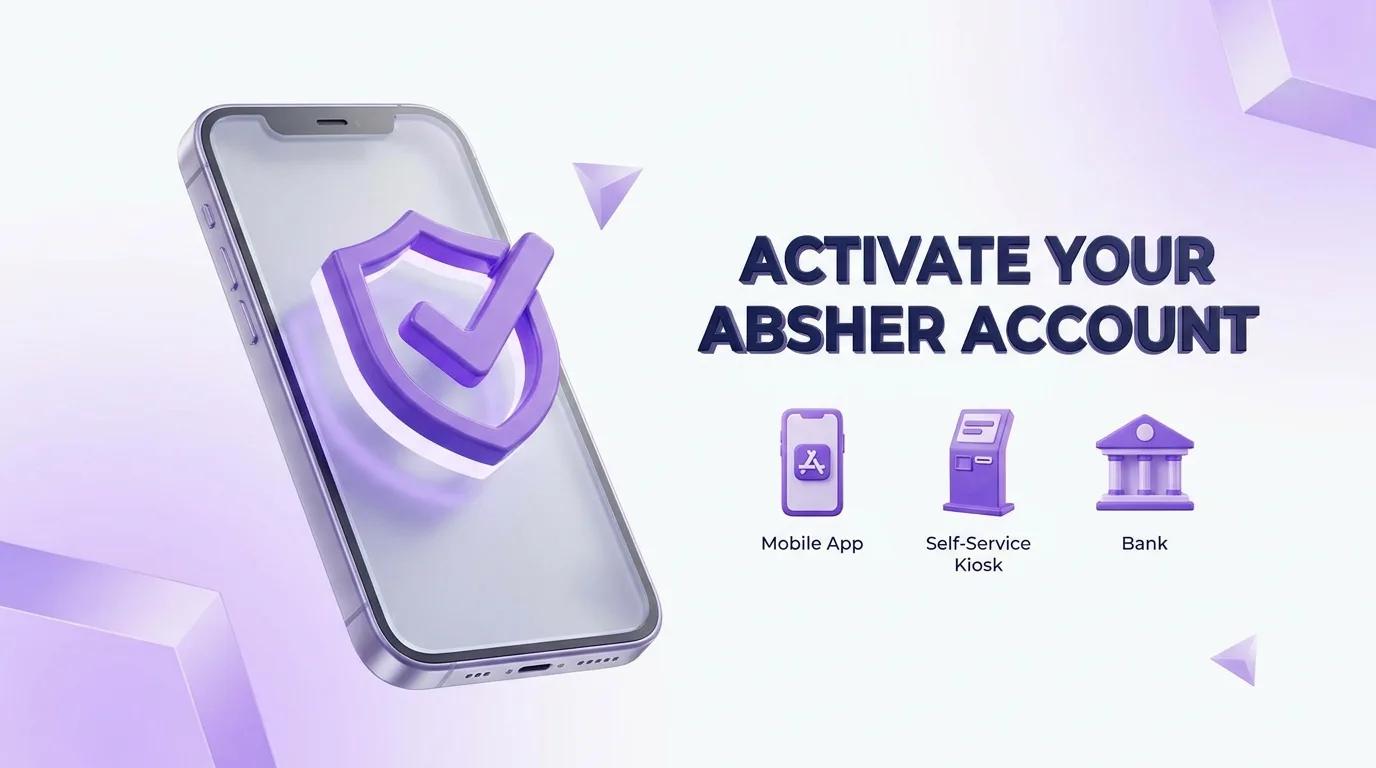
Absher provides the following activation channels:
| Activation channel | When to use it | What to know |
|---|---|---|
| Absher app | You can access the app and see the activation option | Check Digital Identity Management for the available service |
| Self-service kiosk | You can visit an official kiosk | Kiosks support digital identity activation |
| Bank branch | You are a customer of a participating Saudi bank | Ask the bank about its digital identity activation service |
| Jawazat or Civil Affairs office | You need help from an activation officer | Staff verify your identity before completing the service |
Availability of services may vary by channel. Before you choose where to go, check the official activation-channel information for Absher.
What should you do if activation fails?
First, make sure your registration information is correct and that you have access to the mobile number associated with your account.
If you don't see the activation option in the app, check if a self-service kiosk, participating bank branch or an activation officer can help. Follow the identity verification instructions provided by the selected channel.
You may also have to activate Nafath for services that use national digital identity verification. For the steps, see our guide on how to activate your Nafath account in Saudi Arabia.
6. Absher App Error or Crashing
If the Absher app is closing, freezing on the loading screen, or displaying an error, try updating the app and checking your phone first. The problem could be with the app, your device or your Internet connection.
Try these fixes in order:
- check_circleUpdate Absher: Install new version from the official app store.
- check_circleRestart your phone: This can clear temporary problems with the device.
- check_circleStorage check: Free up space if your phone is almost full.
- check_circleClear App Cache: On Android, access the app settings on your phone and look for the cache option. Menu names vary by device.
- check_circleCheck your operating system: Install available phone updates and check app compatibility.
- check_circleTry a different network: Switch between Wi-Fi and mobile data.
- check_circleTest without your VPN: If you are using a VPN, try turning it off temporarily and test again.
- check_circleReinstall App: If nothing else works, uninstall and reinstall the app from the official app store.
Before reinstalling, make sure you know your login details and can do any verification needed to sign back in.
Common Absher app problems
| Symptom | Possible reason | What to try |
|---|---|---|
| App closes by itself | App or phone issue | Update the app and restart your phone |
| Loading screen does not finish | Network or temporary service issue | Try another network |
| App freezes | Low storage or temporary app issue | Free up storage and clear the cache |
| Login fails after reinstalling | Login or verification issue | Check your details and follow the sign-in instructions |
These are generic troubleshooting steps, not official explanations for specific Absher error codes. If you see an error code or message in the app, follow the instructions on the screen or contact Absher support.
7. Absher Website Not Loading or Down
If you can't open the Absher website, first make sure your internet connection works on other sites. This helps you determine if the problem is on your end or possibly on Absher’s end.
Follow these steps:
- check_circleTry opening another website to test your connection.
- check_circleRefresh the Absher page.
- check_circleTry a different browser.
- check_circleOpen the website on another device.
- check_circleSwitch between Wi-Fi and mobile data.
- check_circleClear your browser cache and cookies.
- check_circleBe sure that you are using the Absher Absher website.
If other websites are working and Absher is not, the problem could be temporary. Wait a moment and try again.
For any updates regarding services, please visit the official Absher website and published announcements. Do not assume the platform is down based on one failed attempt.
8. Nafath Not Approving Your Absher Login
If an Absher service asks you to approve a request via Nafath and the approval doesn't work, check that Nafath is active on the current phone and that you're responding to the correct request.
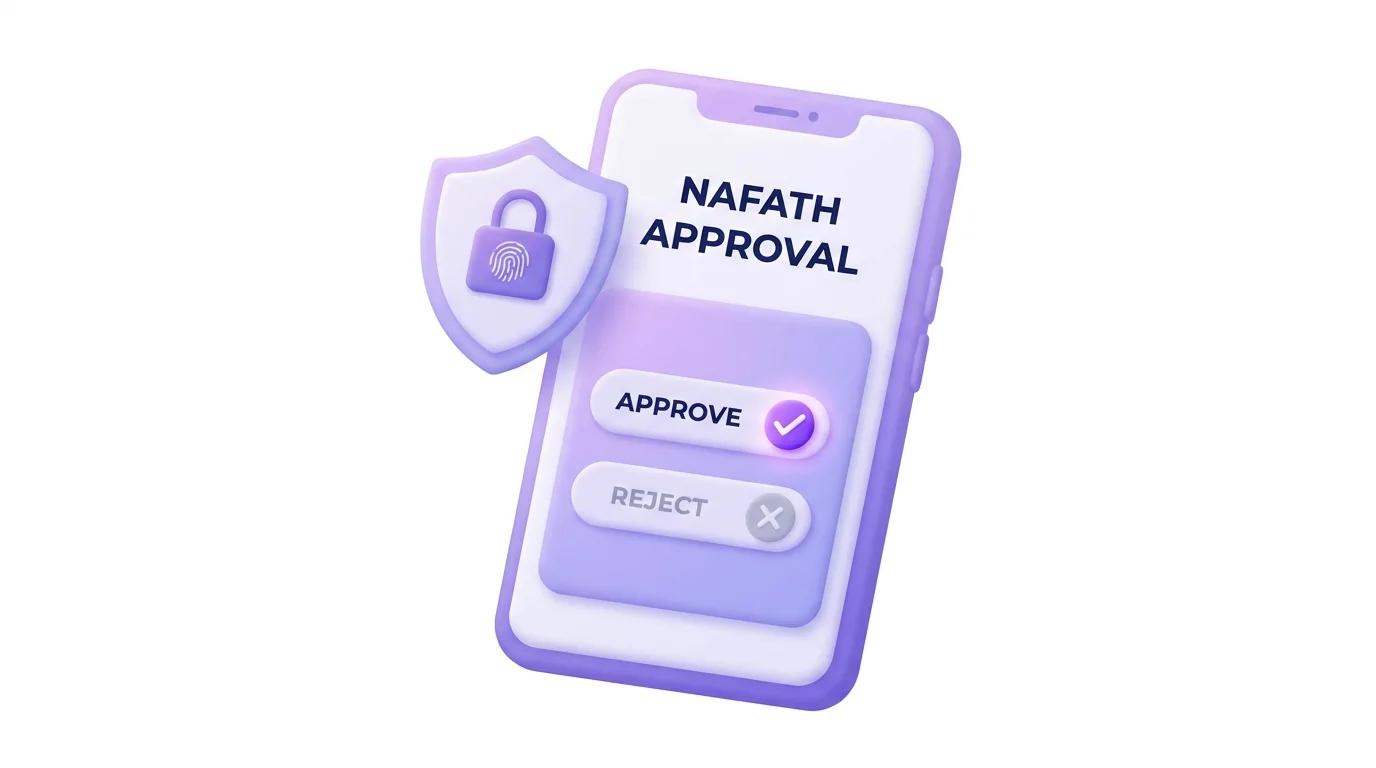
Follow these steps:
- Open the Nafath app and try to login.
- Make sure you have done Nafath activation.
- Look for a request for approval in your phone's notifications.
- Open Nafath and follow the steps for the pending request.
- Please update the app using the official app store.
- Please check your Internet connection and try again.
Make sure the request in Nafath is the same service you are trying to access. Never approve a request you did not start.
Did you change your phone?
Nafath can be active on only one device at a time. If you change phones, you have to activate Nafath on the new phone through the app’s official activation process.
Do not try to bypass the device or identity verification steps. If you cannot activate Nafath on your new phone, please check the support details on the official Nafath contact page.
To get the full process, read our guide on how to activate your Nafath account in Saudi Arabia.
9. Mobile Number Already Linked to Another Account
The Absher registration guidance tells users to enter their own mobile number and not to share the same number with another account. If you see a message that your number is already linked, your number is already registered on another Absher profile.
Here are some steps to try:
- check_circlePlease check if your mobile number is correct.
- check_circleEnsure the number is active and registered for your use.
- check_circleIf the number is yours, but linked to an old account, contact Absher support.
- check_circleIf you need to change the number of your current account, use one of the official methods from Problem 4.
Don't try to cut corners by using another person's mobile number. Your account must include a number that meets Absher registration requirements.
How to Prevent Problems with Absher in the Future
A few simple habits can reduce login, verification and account security issues.
- check_circleKeep your mobile number updated: Make sure you can receive messages on the number linked to your account.
- check_circleUse a strong password: Don't use your Absher password on other websites. Keep it in a password manager.
- check_circleUpdate your apps: Install the official updates for Absher and Nafath.
- check_circleDo not share your OTP: Never share your verification code, password or PIN with anyone.
- check_circleCheck the links on the website: Use the official Absher address and avoid links from unexpected messages.
- check_circleBeware of phishing messages: Don’t open suspicious links or share your account details with anyone claiming to be Absher support.
Absher advises users not to share login credentials or verification codes and to use only its official website and applications. For more information, read the official Absher account security guidance.
For more tips on spotting fake messages and phishing attempts, read our guide to recognizing phishing messages and protecting your accounts.
Still Stuck? Contact Absher Support
Most Absher problems are linked to login details, mobile number access, account activation, or a technical issue with the app or website. Start with the quick checks, then proceed to the solution that fits your problem.
If you are still unable hto access your account, please use the contact information published on Absher’s official Contact Us page:
- check_circlePhone inside Saudi Arabia: 920020405
- check_circlePhone outside Saudi Arabia: +966 920020405
- check_circleEmail: HD@absher.sa
- check_circleX: @ABSHER
- check_circleWebsite: Absher Contact Us
Absher’s unified phone service is available 24/7. Check the official contact page before contacting in case its details change. Never share your password or OTP to anyone.
Building a digital service for users in Saudi Arabia? Explore Nawa Digital's app development services to learn how a well-designed app can make online services easier to use.